
How To Redirect Your Summary Block Blog Post
Did you already set up the redirection for your blog post on the blog collection page, but it does not work for the blog posts in the summary block? If yes, you are at the right place. I encountered this problem earlier, and the good news is I have a solution for you!
My website design journey opens a door for website development. I took some coding courses and worked on some passion projects, and now it is time to put them to use.
Identity The Problem
You can set up blog post redirection in the blog collection page by adding “Source URL” and toggling on “List Post Title To Source URL”. However, this redirection won’t work for the summary block blog collection.
In addition, you cannot use “URL Mappings” to set up redirection, as it is only available for inactive pages.
Step 1: Redirect Your Blog Post To Another Page On Your Site Or An External Page
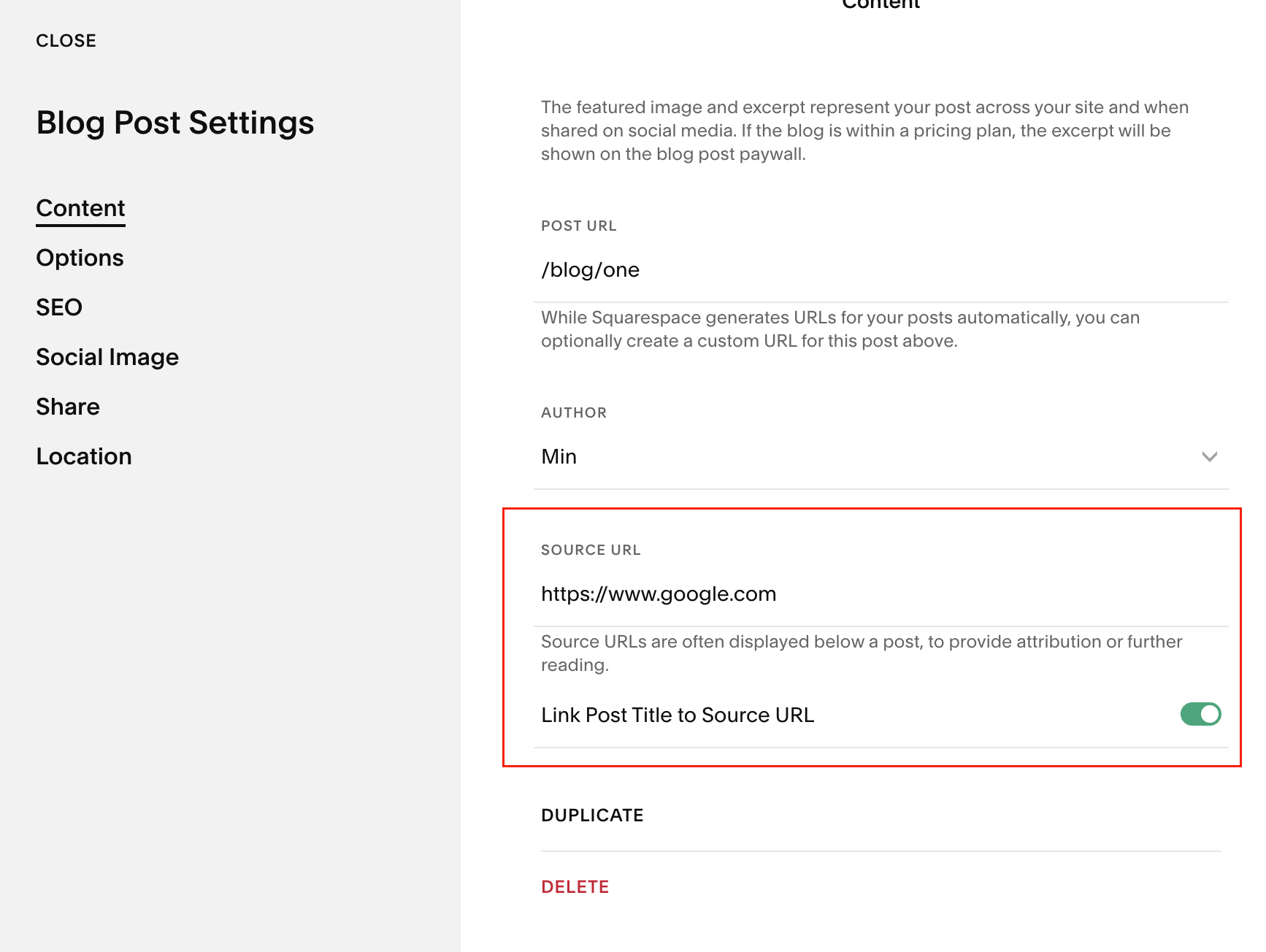
First, you need to redirect your post in your content settings tab.
Put the link in your source URL
Please type the full URL; if you link to a page on your website, you need the full URL, like https://yourdomain.com/slug.
Toggle On “Link Post Title to Source URL”
The default setting for linking the post title to the source URL is off. Please make sure it's toggled on. Otherwise, your redirection won’t be successful.
Step #2: Redirect Your Post Link To The Desired Page Using Code
Add the jQuery Library in code injection.
Please put your library in the header area. You can find the code injection under Custom Code → Code Injection.

<!--JQUERY LIBRARY-->
<script src="https://ajax.googleapis.com/ajax/libs/jquery/3.5.1/jquery.min.js"></script>
Add Custom Code Into Your Advanced Settings Tab
The next thing is to go to the advanced settings for the page that you have the summary block with blog posts.

We will change the link after clicking the “read more button.
First, we target the link that we’d like to change, so in this example, it is: a[href='/blog/one'].
If you blog post URL is: yourdomain.com/journal/blog-post-one, then you target on a[href='/journal/blog-post-one']
<script>
$(document).ready(function() {
$("a[href='/blog/one']").click(function(event) {
event.preventDefault();
window.location.href = 'https://www.google.com';
});
});
</script>
Then we need to specify which page we want to take our audience to. Here in the example, it is “https://www.google.com.
You need to have the full URL.
If you want to take it to any page on your site, it should be: “https://yourdomain.com/about-us”
If You Want To Redirect More Than One Post
This is a simple code to redirect your post. However, if you have more than one post, you need to add more lines. Every time you create a new post, you need to set up a redirection using code.
Custom Advanced Coding
If you want to make your life or your client’s life easier, I can create custom code that redirects all your blog posts, so you have simpler code and no need to add redirection code every time you add a new blog post.
I am a Squarespace developer. You can book a call here.
Need Help With Your Squarespace Or Shopify Website?
Let us know your business and we can design your high-performing websites together.
